Virtual Staging for Real Estate: The Complete Guide
What virtual staging is, how it compares to physical staging, when to use it, and how to stage a listing photo with AI in minutes, step by step.

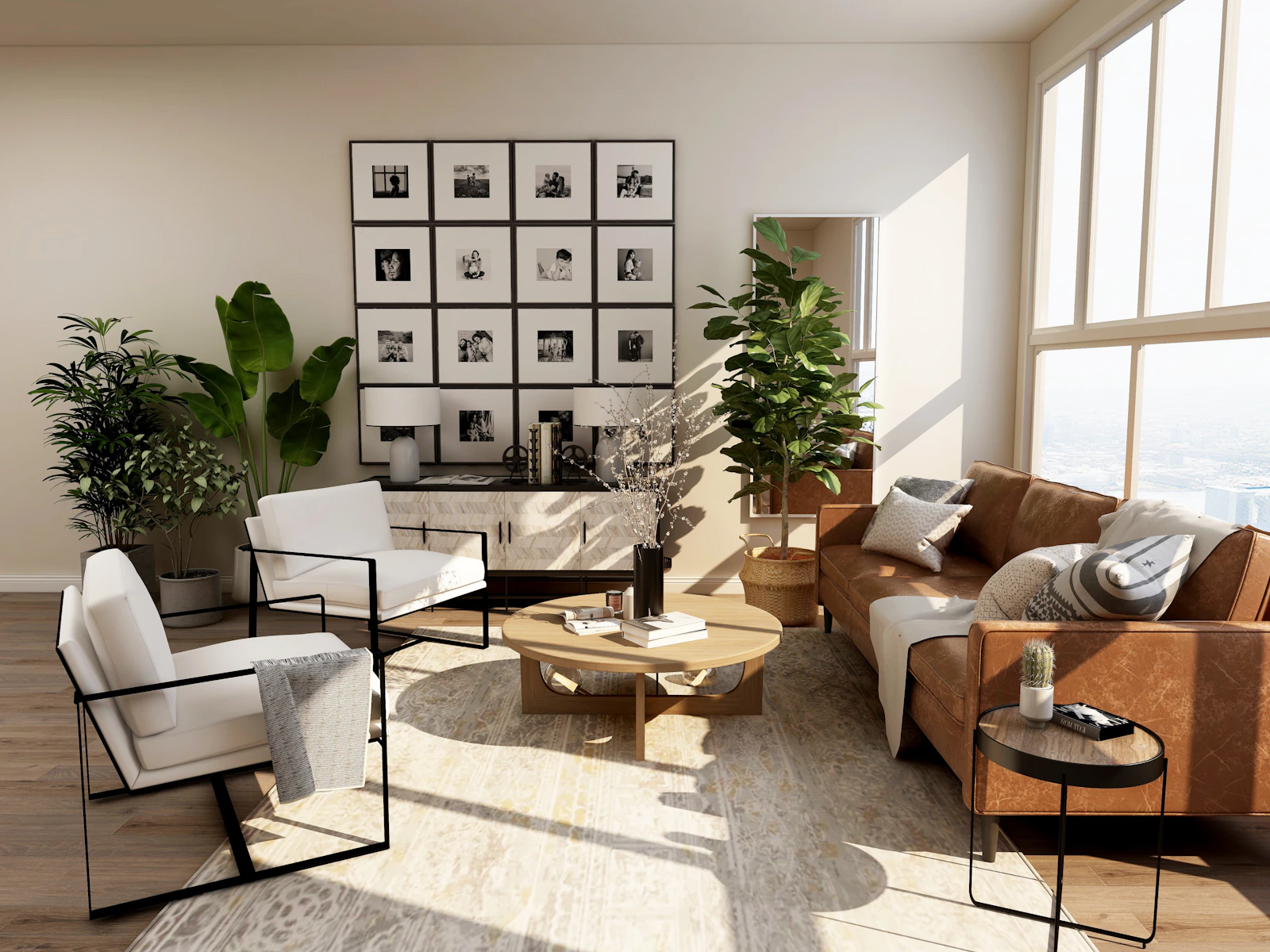
Virtual staging adds furniture, rugs, art and lighting to photos of an empty room, so buyers can picture living there. It used to mean sending photos to a retoucher and waiting days. With AI it takes about a minute per photo.
This guide covers what virtual staging is, how it compares to physical staging, and how to do it well.
What is virtual staging?
Virtual staging is digital furnishing of a real room photo. The walls, windows, floors and camera angle stay exactly as photographed. Only movable things are added: sofas, beds, tables, rugs, plants, art and lamps.
Done well, a viewer can’t tell the furniture isn’t real. Done badly, the scale is off, shadows point the wrong way, or the furniture floats above the floor.
Virtual staging vs. physical staging
| Virtual staging | Physical staging | |
|---|---|---|
| Turnaround | Minutes per photo | Days to schedule, install and remove |
| Cost driver | Per photo | Furniture rental, movers, monthly fees |
| Styles to try | As many as you like | One, the furniture you rented |
| Works for vacant homes | Yes | Yes |
| Works for occupied homes | Yes, after emptying the room digitally | Only with the owner’s furniture moved out |
| What buyers see in person | The empty room | The staged room |
Physical staging still has a place: buyers walking through a furnished home in person is hard to beat. Virtual staging wins on speed, cost and the freedom to show several looks for the same room.
When virtual staging works best
- Vacant listings. Empty rooms photograph small and cold. Furniture gives scale.
- Awkward rooms. A narrow living room or an odd corner reads better when you show one way to lay it out.
- Different buyers. Show the same room as a home office and as a nursery.
- Rentals and short lets. Refresh photos between seasons without buying anything.
How to virtually stage a photo with AI
- Start with a good photo. Shoot level, with the lights on and the blinds open. If the photo is dark or tilted, run Enhance Photo first.
- Empty the room if needed. If there’s furniture or clutter, use Empty the Room (1 credit) to clear it.
- Pick the room type and a style. Open Virtual Staging (2 credits), choose the room type and one of the 12 design styles.
- Generate and compare. Drag the before-and-after slider. If a piece feels wrong, ask for a change in plain words, like “smaller rug” or “no plant by the window”.
- Label it. Add “virtually staged” to the caption or watermark if your MLS requires it.
Tip: Keep the same style across every room in a listing. A Japandi living room next to an Art Deco bedroom looks like two different homes.
What it costs on BasedFrame
| Step | Tool | Credits |
|---|---|---|
| Clean up a dark or tilted photo | Enhance Photo | 1 |
| Clear existing furniture | Empty the Room | 1 |
| Stage the room | Virtual Staging | 2 |
New accounts start with 30 free credits, enough to stage a handful of rooms. See pricing for plans.
Common mistakes to avoid
- Overfilling the room. Two or three anchor pieces read better than a crowded set.
- Ignoring the light. The furniture should be lit from the same side as the windows.
- Hiding flaws. Staging shows potential. It shouldn’t cover up damage buyers will see in person.
Ready to try it? Stage your first room free, or import a whole listing with Listing Remodel.
Frequently asked questions
Is virtual staging allowed on listing sites?
Generally yes, but many MLSs and listing portals require you to disclose that a photo has been virtually staged. Check your local MLS rules and label staged photos clearly.
Can I stage a room that still has furniture in it?
Yes. Run Empty the Room first to clear the existing furniture, then stage the empty result. BasedFrame keeps both versions so you can compare.
How long does it take?
A single staged photo usually renders in under a minute. Staging a whole listing takes as long as it takes you to pick a style for each room.
Try it yourself
Tools from this guide



More from Resources
Keep reading
Real estateDay to Dusk: How to Create Twilight Listing PhotosTwilight exterior photos make listings stand out. Learn when to use them and how to turn a daytime exterior into a blue-hour shot with AI, no reshoot needed.→
GuidesHow to Remodel Zillow Listing Photos with AIPaste a Zillow link, get every photo sorted by room, then change floors, walls, cabinets or whole rooms with a click. A step-by-step guide with credit costs.→
Design styles12 Interior Design Styles Explained, with ExamplesJapandi, Scandinavian, Mid-century, Industrial, Art Deco and more: the materials, colours and furniture that define 12 popular interior design styles.→